
Data Practices
Data Practices are the lists of values you pick from when you map personal data in Trustworks. Setting them up once keeps your records consistent and your RoPA easy to report on.
You'll find them under Settings › Data Practices, in four tabs. Each one is used in different places:
| Data practice | What it describes | Where it's used |
|---|---|---|
| Category of Individuals | The people whose data you process | Data mapping of Processing Activities, Assets and Initiatives, and Subject Requests |
| Data Categories | The types of personal data you process | Data mapping of Processing Activities, Assets and Initiatives |
| Data Sources | Where the data comes from | Data Map of Processing Activities (RoPA) only |
| Data Sharing | Who the data is shared with (data recipients) | Data Map of Processing Activities (RoPA) only |
Trustworks comes with a default set of values on each tab. You can add your own, edit them, or remove the ones you don't need.
Categories of Individuals
Categories of individuals describe the groups of people whose personal data you process, for example Customers, Employees, Candidates or Website visitors.
They're used in two places:
- Data mapping of Processing Activities, Assets and Initiatives. Each mapping row pairs one or more categories of individuals with the data categories you process about them.
- Subject Requests, to record what kind of individual a request comes from.
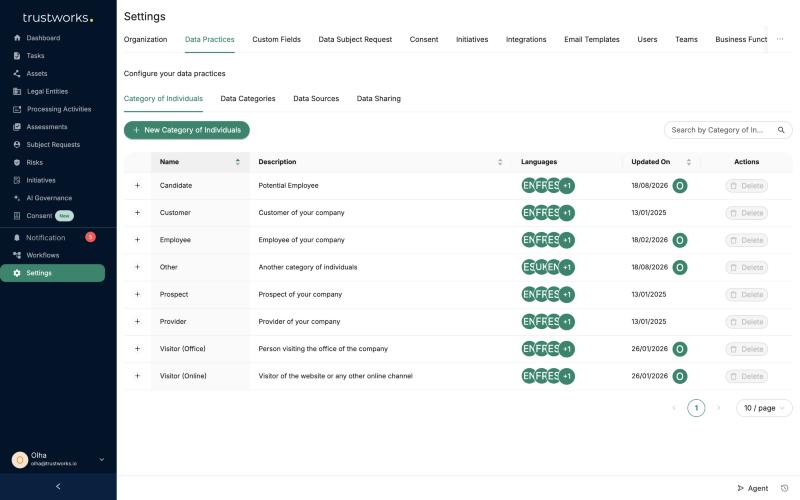
Add a category
- Go to Settings › Data Practices › Category of Individuals.
- Click + New Category of Individuals.
- Enter a Name (for example, "Vendors/Suppliers") and, optionally, a Description.
- Optionally, click + Add Language to add a translation of the name for each language you support.
- Click + Create.
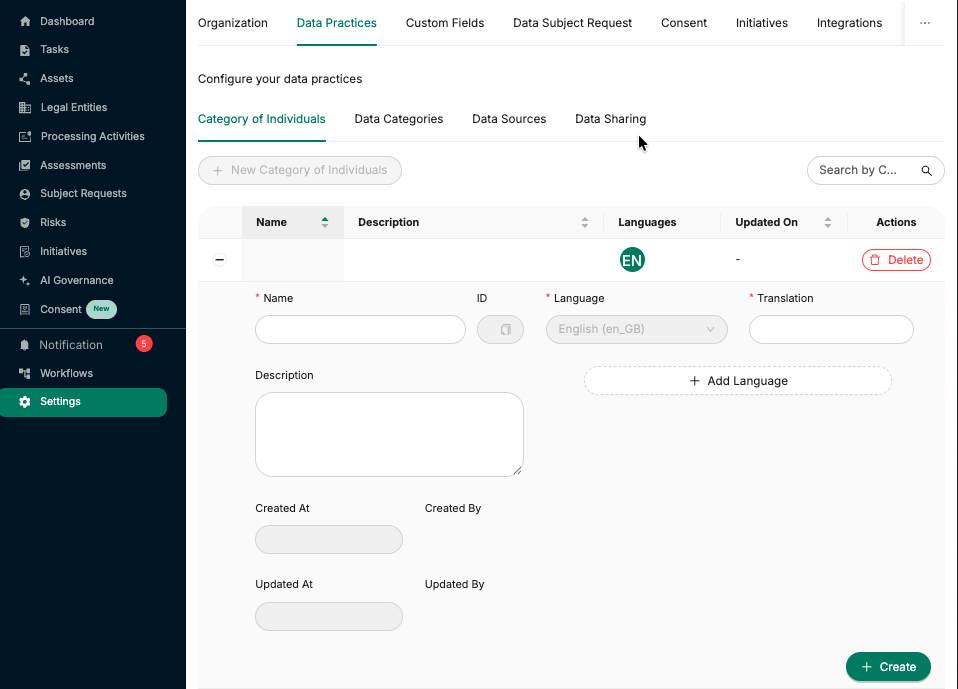
Edit or delete a category
Click + next to a category to open it, change the name, description or translations, and click Update.
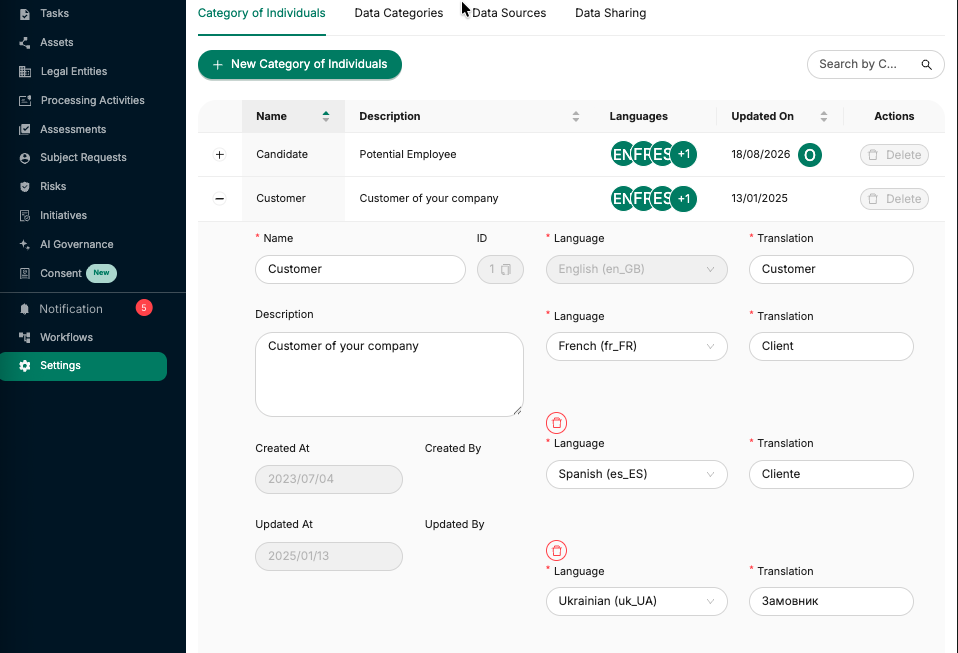
To remove a category, click Delete on its row and confirm.
If you plan to manage DSRs from multiple countries and maintain widgets in multiple languages, you also need to add localised translations for each additional language.
Data Categories
Data categories describe the types of personal data you process, for example Contact, Authentication or Biometric data. Each category has a sensitivity level and can be flagged as special category data.
Data categories are used in the data mapping of Processing Activities, Assets and Initiatives, alongside categories of individuals. Data categories aren't used in Subject Requests.
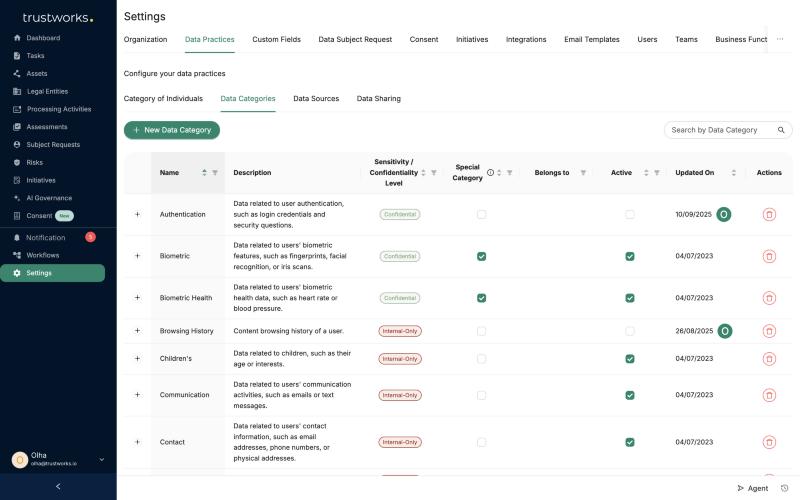
Add a data category
- Go to Settings › Data Practices › Data Categories.
- Click + New Data Category.
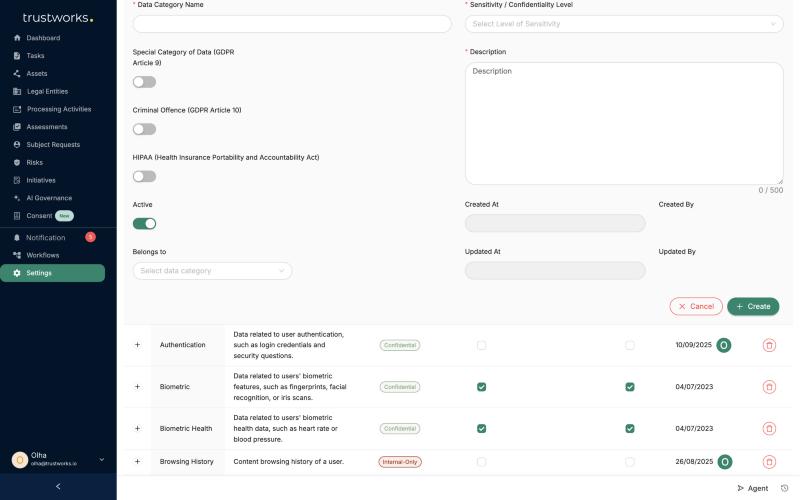
- Fill in the details:
- Data Category Name, for example "Religious Belief".
- Sensitivity / Confidentiality Level: Public, Internal-Only, Confidential or Restricted.
- Description (up to 500 characters) explaining what the category covers.
- Special Category of Data (GDPR Article 9): turn on for special category data. See Art. 9 GDPR.
- Criminal Offence (GDPR Article 10): turn on for data about criminal convictions and offences.
- HIPAA: turn on for data covered by the Health Insurance Portability and Accountability Act.
- Belongs to (optional): pick a parent data category to group related categories together.
- Active: on by default. Turn it off to stop the category from being selected in new records.
- Click + Create.
Edit or delete a data category
Click + next to a category to edit it, then click Update. To remove one you created, click the delete icon on its row.
Data Sources
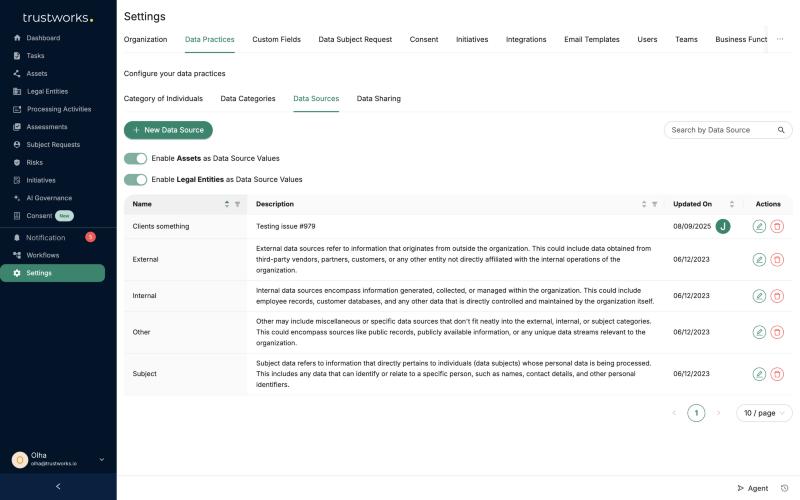
Data sources describe where the personal data in a processing activity comes from. Trustworks includes four default sources:
- External: data from third-party vendors, partners, customers or other organisations.
- Internal: data generated within your organization, such as employee records or customer databases.
- Subject: data provided directly by the individuals it relates to.
- Other: anything that doesn't fit the categories above, such as public records.
Add a data source
- Go to Settings › Data Practices › Data Sources.
- Click + New Data Source.
- Enter a Name and, optionally, a Description, then save.
You can also use records you already have as data sources:
- Enable Assets as Data Source Values: lets you pick your Assets as data sources.
- Enable Legal Entities as Data Source Values: lets you pick your Legal Entities as data sources.
Data Sharing
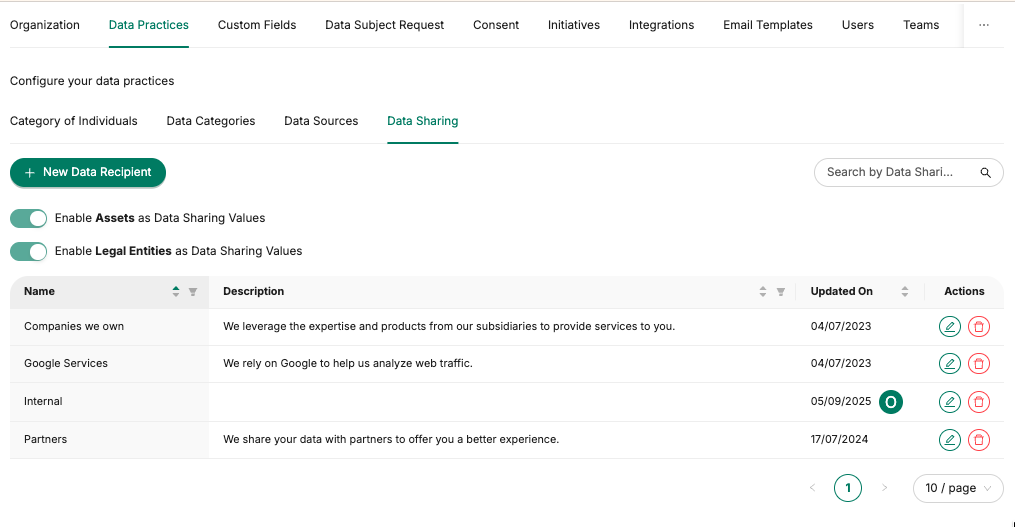
The Data Sharing tab lists the recipients that personal data is transferred to or disclosed to.
Add a data recipient
- Go to Settings › Data Practices › Data Sharing.
- Click + New Data Recipient.
- Enter a Name and, optionally, a Description, then save.
As with data sources, you can turn on Enable Assets as Data Sharing Values and Enable Legal Entities as Data Sharing Values to pick existing Assets or Legal Entities as recipients.